Back to Help Center

FAQ

Reservations, payments, refunds, and general information

Purchasing Snacks & Drinks in the Lounge

You can purchase snacks and drinks inside the lounge

Sheem Lounge offers a selection of light snacks and beverages available for purchase directly in the lounge. There’s no need to bring anything from outside—you can pay on-site and enjoy them right away.

How to Purchase

Please use whichever of the following two methods is most convenient for you.

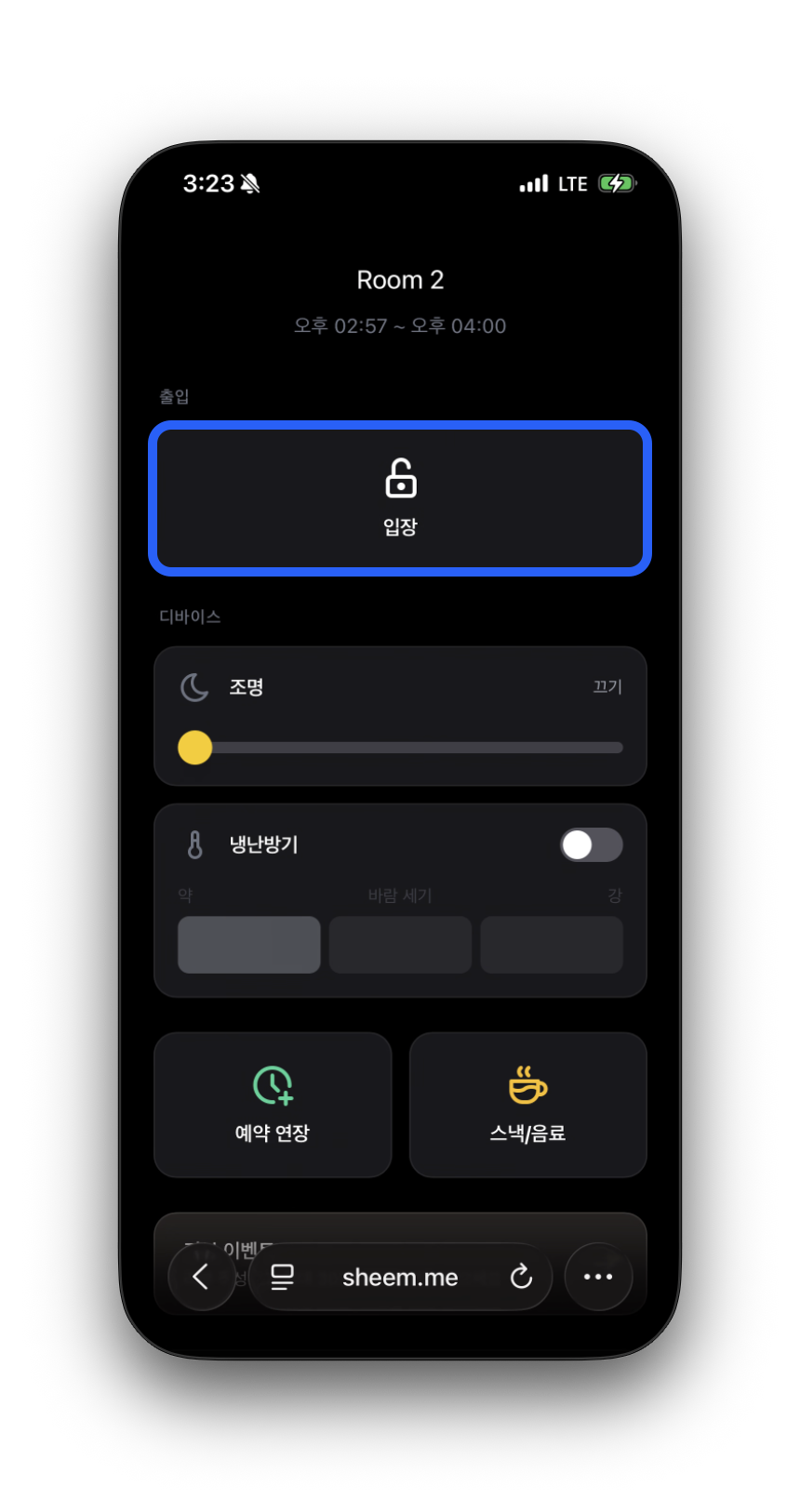
1. The [Snacks/Drinks] button on the Mobile Key page

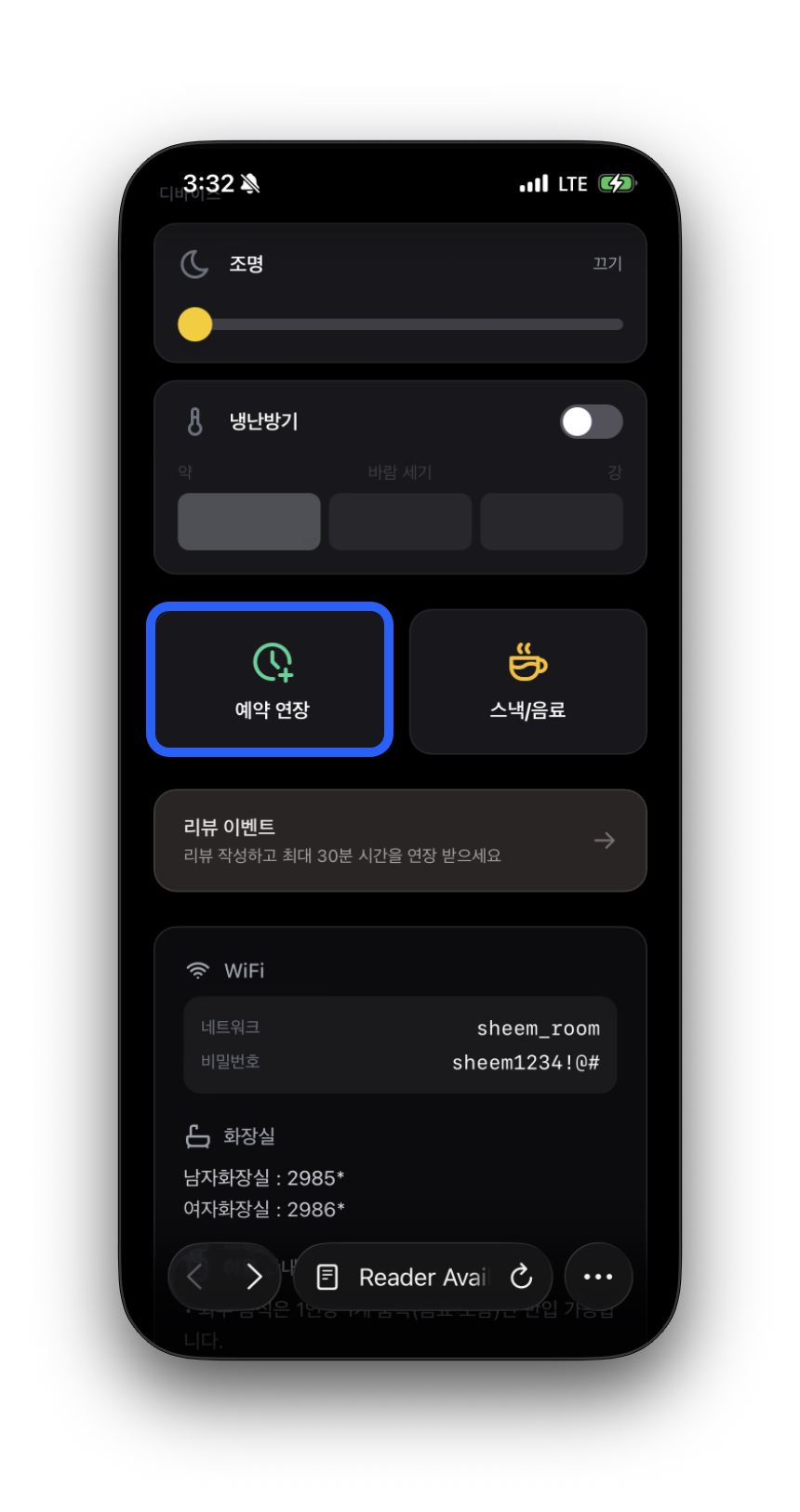
After check-in, tap the [Snacks/Drinks] button on the Mobile Key page to go to that lounge’s sales page. (You can open the Mobile Key from the KakaoTalk/SMS link sent when your reservation is confirmed.)

2. Scan the QR code at the snack bar

Scan the QR code placed at the snack bar in the lounge with your phone camera to access the same sales page.

Both methods lead to the same page, where you can check the available menu items and prices in real time.

Payment

  • When you select a menu item, you will be taken to the card payment page for each purchase.
  • Once payment is complete, you may pick up your item directly from the snack bar or receive it according to the instructions provided.

Food Policy

Foods Allowed

  • Light snacks: crumb-free and odor-free snacks such as chocolate bars, energy bars, jelly, and candy
  • Cakes: allowed, but cake boxes cannot be disposed of inside the lounge
  • Odor-free foods: plain rice porridge, sandwiches (as long as they do not have a strong smell)
  • Sealed drinks: bottled beverages, takeaway coffee, etc.

Leftover drinks cannot be thrown away in the trash bin!

Foods Not Allowed

  • Strong-smelling foods: jokbal, fried chicken, pizza, fish, garlic-heavy or strongly seasoned foods
  • Foods that create a lot of crumbs: bagged chips, popcorn, crackers
  • Soupy foods: ramen, stews, soup, etc.
  • Alcoholic beverages: all types of alcohol

How do I make a reservation?

How to Book

  1. Select a lounge: Choose your preferred lounge location.
  2. Select a room/seat: Check available rooms (or seats) and time slots.
  3. Choose date/time: Select your preferred date and usage time.
  4. Payment: Complete payment to confirm your reservation.

After confirmation, you will receive an SMS with a confirmation message and mobile key link.

Changing a Reservation

  • Self-service changes that move your start time later are available until 30 minutes before the scheduled start.
  • You can change your reservation directly from My Reservations.

Using the reservation page (timetable)

There is no separate "Reserve" button. Pick a time on the timetable and the payment button appears.

  1. In the row of the room you want, tap the cell for your start time. The minimum usage time is selected automatically, and the times are shown at both ends of the selection.
  2. To use the room longer, tap a later cell in the same row. Tapping an earlier cell moves the start time. Tapping the first or last selected cell again clears the selection.
  3. Grey cells are already booked, in the past, or outside opening hours; they cannot be selected or skipped over. If tapping a later cell does not extend the selection, there is a booked cell in between — choose another room or time.
  4. Once a time is selected, the Pay Now button appears at the bottom. Check the number of guests and any coupon, then pay to confirm.

Cancelling a reservation

  • You can cancel from My Reservations → the reservation's detail page → Cancel reservation. The refund ratio is calculated automatically from the cancellation time (see the cancellation and refund policy).

What payment methods are available?

Payment Methods

  • Online Payment: We accept credit cards, debit cards, and simple payment services (Kakao Pay, Naver Pay, Toss Pay, etc.).
  • On-Site Payment: On-site payment is not available.
  • Foreign Payments: International guests can pay via PayPal. Please set the currency to USD when making the payment.

Receipt

After completing your payment, you can view your receipt on the reservation details page.

How do I enter?

Mobile Key Check-In

  1. Once your reservation is confirmed, a reservation confirmation message will be sent via KakaoTalk.
  2. When it is time to check in, the mobile key will be activated.
  3. Tap Enter (Check In) on the mobile key to check in and unlock the door.

Important Notes

  • The mobile key will be activated 3 minutes before your reservation time.
  • You may enter at any time during your reservation period.

Adjusting Heating and Cooling from the Mobile Key

Where can I control it?

After check-in, you can control it directly from the mobile key page.

  • Mobile key page: the link in the SMS sent when your reservation was confirmed or https://sheem.me/key/<reservation number>
  • There is no separate wall-mounted remote or control button in the room. All controls are handled through the mobile key page.

What you can control

After check-in, in the Air Conditioner/Heater card under the Devices section:

  1. Power toggle — Turn it on or off using the switch on the right side of the card.
  2. Fan speed — Adjust it by tapping the segmented bar for Low / Medium / High. (If it is in Auto mode, an "Auto" notice will be shown.)

Depending on the room, preset buttons set up in advance by the host (e.g. Strong Cooling, Low Heating) may also be displayed. In rooms with presets, one tap sets the mode, temperature, and fan speed all at once.

If you want to switch between cooling and heating modes

  • Rooms with preset buttons: Tap the preset button for the mode you want.
  • Rooms without presets: There is no mode switch button on the mobile key page. Please contact us via our KakaoTalk channel or Channel Talk and send <reserved room number> please switch to cooling or please switch to heating, and we’ll change it for you right away.

Frequently Asked Questions

  • Nothing happens when I press the button — Right after check-in, it may take a moment for the device status to update. Please try again after 5–10 seconds.
  • It says "Identity verification is required" — Device control is only available after the accompanying guest’s identity verification is completed. Please follow the identity verification instructions at the top of the mobile key page.
  • I can’t adjust it after my usage time ends — Controls are only available during your booked time.

Turning the room lights on/off from your mobile key

Where to control it

Room lighting is controlled from your mobile-key page after check-in — not from a wall switch.

  • Mobile-key page: the link sent in your reservation SMS, or https://sheem.me/key/<reservationId>
  • There is no light wall-switch or remote inside the room. All controls live on the mobile-key page.

How to turn lights off / on

In the Devices section after check-in, use the Light card's brightness slider.

  1. Off — drag the slider all the way left (0%).
  2. Dim / Bright — slide left or right to the brightness you want (the current level is shown as a %).

Troubleshooting

  • No light card is shown — some rooms don't expose mobile-key light control. Message us on KakaoTalk or the in-app chat with your room number and we'll help.
  • Sliding does nothing — device state can take a few seconds to refresh right after check-in. Try again in 5–10 seconds.
  • "Verification required" appears — companion identity verification must finish before devices can be operated.
  • Controls disappear after end time — lighting controls only work during your active reservation window.

Coupon Guide: Viewing, Using, and Expiration

View Your Coupons

You can see all issued coupons on the My Coupons page (login required).

  • They are organized into three tabs: Available / Used / Expired.
  • You can quickly check each coupon’s discount details, expiration date, and usage conditions at a glance.
  • Coupons with 7 days remaining until expiration are highlighted with a D-7 label.

Coupon Types

  • % Discount Coupon: A percentage discount off the payment amount (e.g. 10% off)
  • Fixed Amount Discount Coupon: A discount for a set amount (e.g. ₩5,000 off)
  • Time Coupon: Adds free usage time (e.g. 30 minutes) — mainly used for extending your session time

How to Use Coupons

At the payment step of your reservation, simply select the coupon you want to use and the discount will be applied automatically.

  • Multiple coupons can be applied at once to a single payment.
  • Time coupons are automatically deducted during the extension step on the [Mobile Key] page.

Some coupons may be valid only for specific lounges, rooms, or items, or may have usage limits per user. If a coupon cannot be applied, please check its conditions on My Coupons.

Coupon Restoration on Reservation Cancellation

When you cancel a reservation that used a coupon, whether the coupon is restored depends on when you cancel.

  • If you cancel at a point eligible for a full (100%) refund, the coupon you used is automatically restored and can be used again. Its original expiration date stays the same.
  • For cancellations at a partial-refund or no-refund point, or a no-show, the coupon is treated as used and is not restored.

Please refer to the “Cancellation & Refund Policy” guide for the exact refund-rate timing.

Expiration Notice

  • A coupon’s expiration date is set at the time of issuance, and it can be used through the expiration date itself.
  • Starting the day after the expiration date, it will automatically move to the Expired tab and can no longer be used.
  • It is generally difficult to extend the validity period of an expired coupon.
  • Some promotional coupons may have no expiration date, in which case they can be used indefinitely.

Gift Coupons

You can gift your coupons to someone else.

  • My Coupons → Gift button on the coupon card → Enter the recipient’s phone number
  • A coupon that is currently being gifted cannot be used by you either (if the gift is canceled, it can be used again).
  • Only one in-progress gift can exist for a single coupon at a time.

[Massage Chair Usage Guide] Familie S

If You Wish to Sleep

  1. Press the Zero Gravity button twice to set it to Zero Gravity Level 2.
  2. Press the Power button once, and when "Press End to turn off" appears on the screen → it will not return to its original position.

When Using the Massage Function

Please select and use your preferred massage mode.

The massage chair will automatically stop every 20 minutes. If you would like to continue using it, simply select another massage mode again.

Cancellation & Refund Policy

Cancellation & Refund Rules

Cancellation TimingRefund
Within 10 minutes of payment100%
At least 3 hours before check-in100%
More than 30 minutes but less than 3 hours before check-in50%
30 minutes or less before check-in, or no-showNo refund

Refund Processing Time

  • Card payments: Refunded within 3–5 business days
  • Simple payments: Refunded within 1–3 business days

Deposit Information

What is the deposit?

To help maintain clean facilities, some lounges collect 50% of the reservation amount as a deposit.

  • Domestic NORMAL members: deposit required
  • Domestic SILVER, GOLD, and DIAMOND members: deposit waived
  • International customers: deposit required regardless of grade

If you leave the facility clean, the deposit is fully refunded within 3 hours after checkout. Overnight stays are processed by 10:00 AM the following day.

Deposit deduction criteria

  • Repair or cleaning costs may be deducted if damage or contamination is found.
  • If a deduction is made, we send a message explaining the reason.

Refund process

  • For credit cards, the deposit amount is canceled from the authorization.
  • For debit cards, it may take 3–4 business days for the refund to appear, depending on the card issuer.

Buying snacks & drinks

Do you sell them on-site?

Yes. Sheem Lounge sells bottled water, drinks, and light snacks. (The exact items and prices vary by branch.)

How to buy

  1. Add during booking/checkout — you can add products to your order when you reserve.
  2. On-site — you can buy stocked items at the lounge.

On your receipt/order history they appear by product name (e.g. "생수" = bottled water).

Notes

  • Available items differ by branch — tell us the branch and we'll let you know what's stocked.
  • For bringing your own outside food/drinks, see the separate "Food & drink policy" guide.

Extend Usage Time

How to Extend

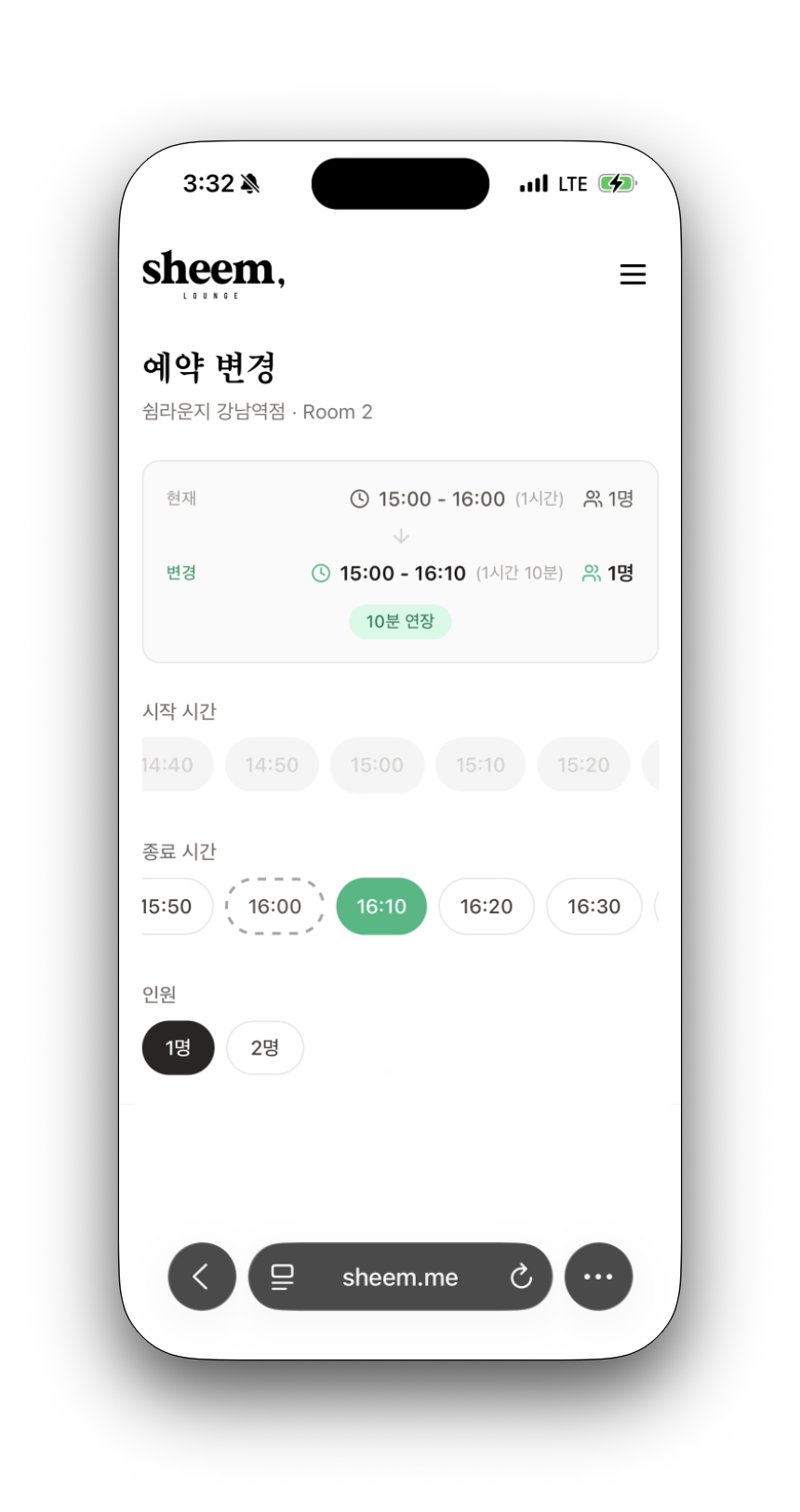
  • While using the lounge, you can tap the extend button on the Mobile Key page to pay for additional time.

  • Extensions are only available if there is no reservation after yours.

Extension Fee

  • The same hourly rate as the standard usage fee applies.
  • Extensions are available in 10-minute increments.

How to Contact Customer Support

Contact Channels

  • KakaoTalk Channel: Search for "쉼라운지" and start a 1:1 chat
  • Phone Inquiries: Contact number for each lounge (see the lounge detail page)
  • Channel Talk: Chat icon at the bottom right of the website
  • Email Inquiries: support@superplace.so

Operating Hours

  • KakaoTalk/Naver TalkTalk: 09:00 ~ 22:00 (Open year-round)
  • Phone Inquiries: 09:00 ~ 18:00 (Weekdays)

For urgent late-night inquiries, please leave a message via the KakaoTalk channel and we will respond the following morning.

How do I use OTT services?

  1. Please note that Netflix accounts are not provided separately.
  2. You may log in with your personal account to use Netflix, TVING, Disney+, Coupang Play, and other services.
  3. You may also cast content from your personal phone to the TV/projector for viewing.
  4. If you log in with your personal account, please make sure to log out before leaving.
  5. If you forgot to log out, please use the remote logout feature in each OTT app.

How to install the app

How do I get the Sheem Lounge app?

Sheem Lounge isn't a separate App Store / Play Store app — it's a web app (PWA) you add to your home screen. Once installed, a Sheem Lounge icon appears on your home screen and opens just like an app.

You don't have to install it — booking and the mobile key work in any browser. Installing just makes it faster to open.

How to install

iPhone (Safari)

  1. Open sheem.me in Safari.
  2. Tap the Share button.
  3. Choose Add to Home Screen.

Android (Chrome)

  1. Open sheem.me in Chrome.
  2. Tap the Install app prompt, or open the top-right menu (⋮ / ☰) and choose Install app.
  3. Tap Install.

After logging in, you can also tap Install app inside the top-right menu (☰). If it's already installed, this button won't appear.

Once installed, open the Sheem Lounge icon on your home screen to enter.

Lost Item Inquiry

Reporting a Lost Item

This lounge does not keep a separate lost and found.

If you left an item behind after your visit, please contact Customer Support. If the lost item has been turned in by our lounge staff or another guest, we will guide you on how to retrieve it.

How to Collect

  • In-person pickup: Collect it at the relevant lounge

Age Restrictions

Eligible Age for Use

  • Single Room: Available for all ages.
  • Double Room: Available only to guests aged 19 and over (ID verification required)

All guests are required to complete identity verification (mobile phone verification) when making a reservation.

Service Recovery Promise

Service Recovery Promise

If your usage time is shortened due to an issue on our side, our policy is to make sure you get that time back.

If You Are Currently Using the Lounge

We will automatically extend your reservation on the spot by the amount of time lost, so you can finish comfortably.

If an Extension Is Not Possible

If another reservation is scheduled next, or if you have already checked out, we will issue a time coupon for the same amount of lost time. You can view the issued coupon right away on the My Coupons page and use it as-is on your next visit.

Please feel free to let us know anytime.

    We use cookies for essential features, analytics, and ad measurement. Analytics and marketing cookies are optional. For details, see our Privacy Policy